~/swaydesk/components/battery

← All components

Battery

Battery

Battery

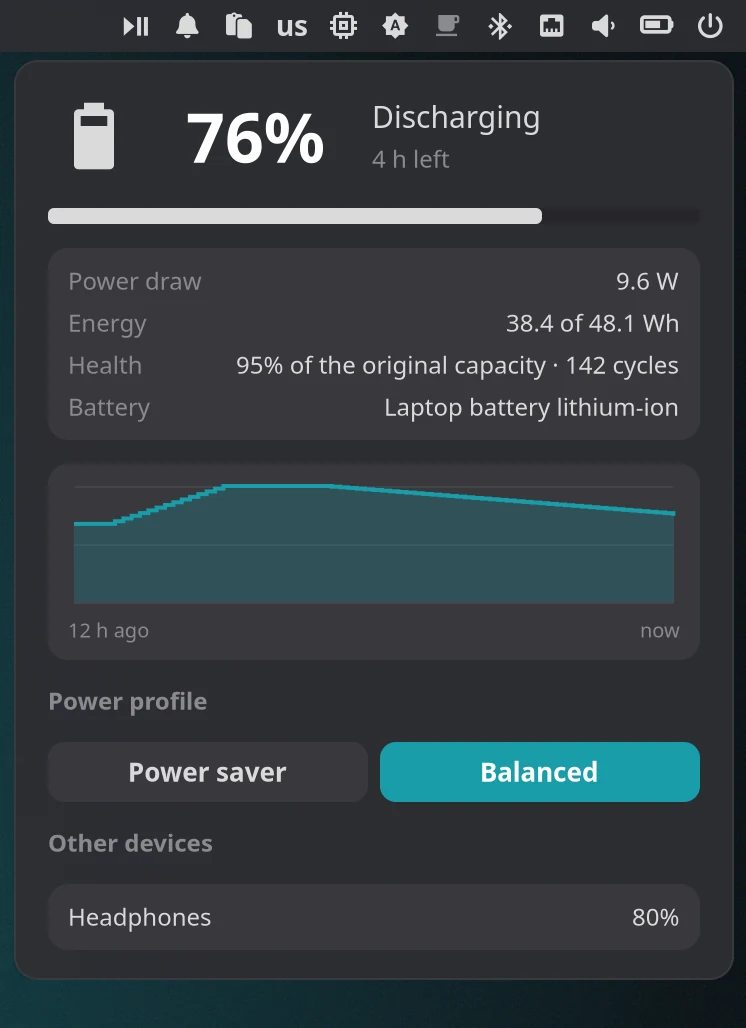
Charge, time left, power draw, health, a 12-hour graph and the power profile.

  • The icon shows a bolt while charging, a plug when plugged in, or the charge level.
  • On battery, the icon turns orange at 20% and red at 10%.
  • The tooltip shows the percentage and the time until full or the time left.
  • Health shows the capacity left compared with new, the charge cycles and the model.
  • Power saver, Balanced and Performance buttons, only those your system offers; the active one is in the accent color.
  • Right click on the icon steps to the next power profile.
  • Middle click sends a notification with the charge, state, time and profile.
  • Other devices shows the battery of headsets, mice and other wireless devices.
  • More information opens GNOME Power Statistics, when it’s installed. The icon hides on computers without a battery.

Rust + GTK 4 · source · More in the guide · turn off: [enabled.bar] battery = false

Install it alone

Only this component, without the full session. First add the Swaydesk repository, as on the page Install.

Debian 13

sudo apt install swaydesk-battery

Ubuntu 26.04 · Mint 27

sudo apt install swaydesk-battery

Arch Linux

sudo pacman -Syu swaydesk-battery upower

pacman doesn't install optional dependencies, so the line already has the ones apt installs by itself.

Start it on plain Sway

It starts from its Waybar module, below.

In Waybar

In ~/.config/waybar/config.jsonc, add "custom/swaydesk-battery" to modules-left, modules-center or modules-right, and paste the module from this file next to your other modules:

/usr/share/swaydesk/waybar/swaydesk-battery.jsonc

The file's first lines say what each click does. The icons come from the Symbols Nerd Font, which the package brings.

Shortcuts

Click the battery

Those of the Swaydesk profile, the default. The other profiles are in Shortcuts.