~/swaydesk/components/bluetooth

← All components

Bluetooth

Bluetooth

Bluetooth
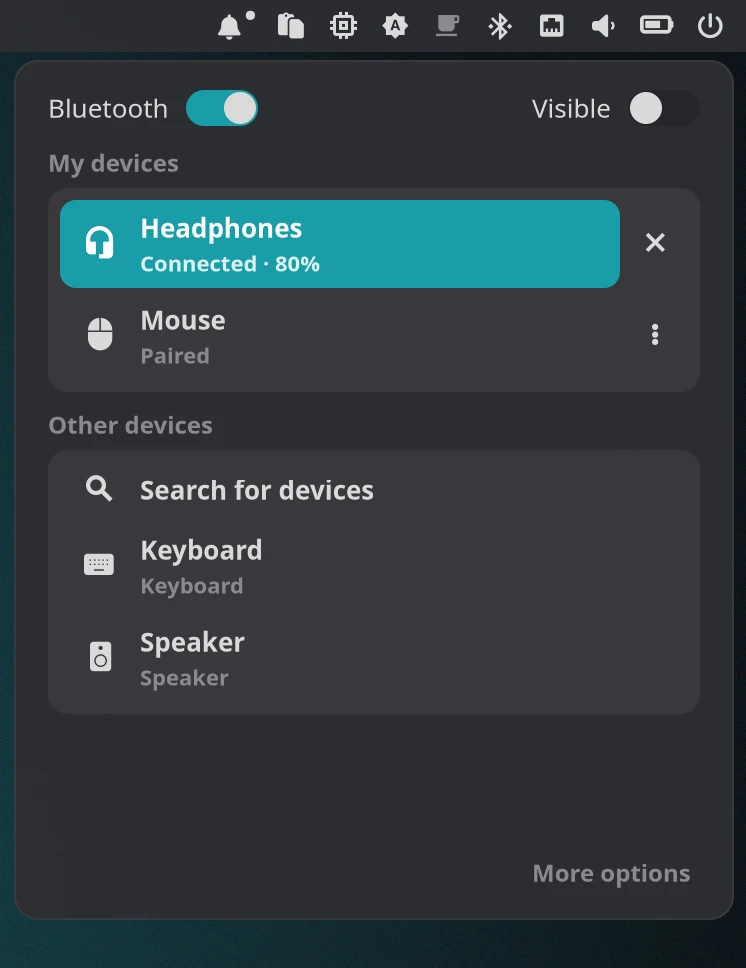
Paired devices and the ones found nearby
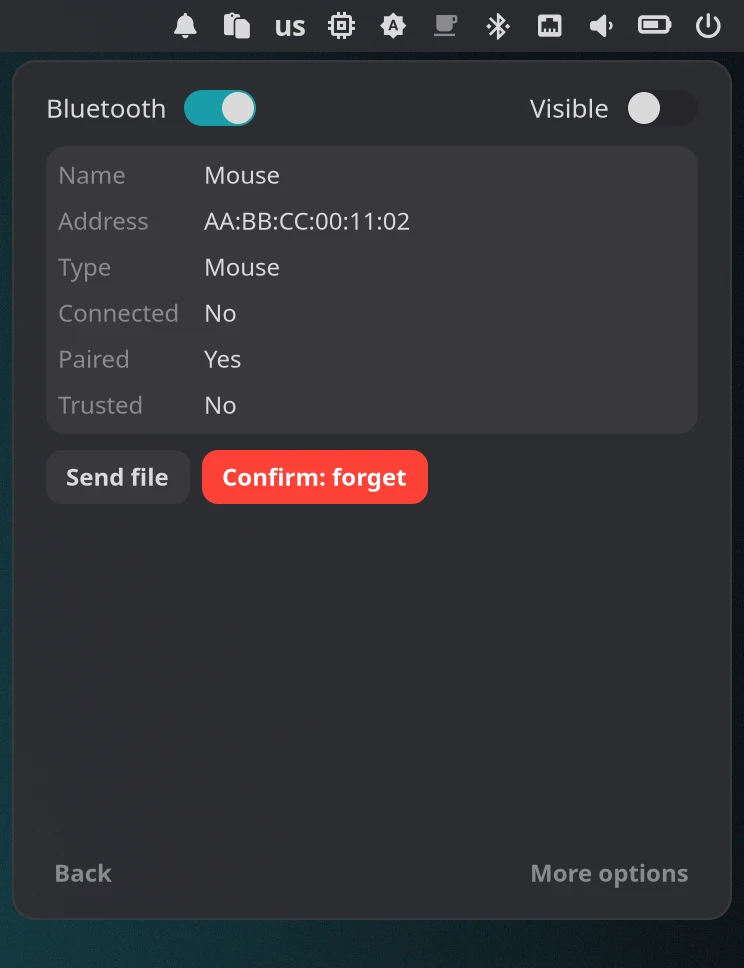
A device's details; Forget asks for a second click

Turns Bluetooth on, finds devices, pairs, connects, forgets them and sends files.

  • Switches turn Bluetooth on and off and make the computer Visible to other devices.
  • Turning it on also lifts a software block, without asking for a password.
  • Search for devices looks for 30 seconds; click Searching… to stop early.
  • Click a found device to pair, trust and connect it; PIN codes appear in blueman’s dialog.
  • In My devices, click to connect and × to disconnect; connected ones show their battery.
  • ⋯ opens a device’s details: address, type, paired, trusted and battery.
  • Send file sends a file to the device; Forget asks for a second click first.
  • More options or a middle click on the icon opens blueman-manager.
  • The icon’s tooltip lists the connected devices with their battery level.

Rust + GTK 4 · source · More in the guide · turn off: [enabled.bar] bluetooth = false

Install it alone

Only this component, without the full session. First add the Swaydesk repository, as on the page Install.

Debian 13

sudo apt install swaydesk-bluetooth

Ubuntu 26.04 · Mint 27

sudo apt install swaydesk-bluetooth

Arch Linux

sudo pacman -Syu swaydesk-bluetooth bluez

pacman doesn't install optional dependencies, so the line already has the ones apt installs by itself.

Start it on plain Sway

It starts from its Waybar module, below.

In Waybar

In ~/.config/waybar/config.jsonc, add "custom/swaydesk-bluetooth" to modules-left, modules-center or modules-right, and paste the module from this file next to your other modules:

/usr/share/swaydesk/waybar/swaydesk-bluetooth.jsonc

The file's first lines say what each click does. The icons come from the Symbols Nerd Font, which the package brings.

Shortcuts

Click the Bluetooth icon

Those of the Swaydesk profile, the default. The other profiles are in Shortcuts.