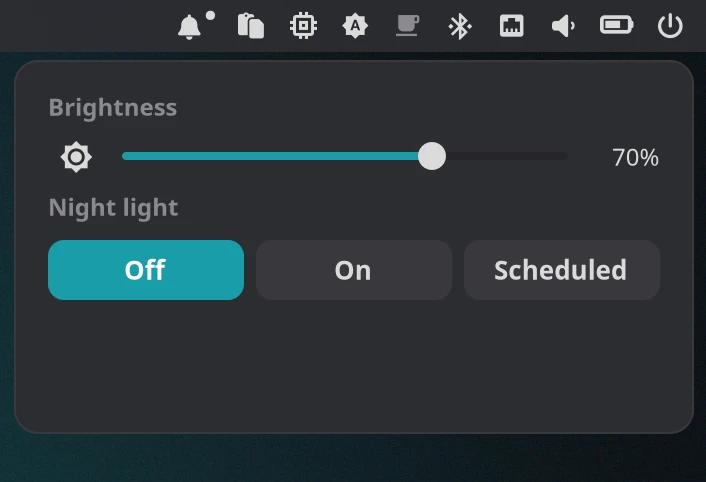
Screen brightness and the night light: off, on, or on the schedule you pick.
Scroll on the icon changes the brightness by 5%, with the on-screen indicator.Brightness never goes below 1%, so the screen never goes black. The Brightness slider hides on computers without a backlight, like most desktops. On warms the screen all the time (4500 K by default); Scheduled does it between two times.Type the start and end times (18:00 to 06:00 by default) and press Enter to save. Switching between On and Scheduled at night waits until morning, so the screen doesn’t flicker. The night light needs gammastep; the popup tells you when it’s missing. The last mode comes back at login; [enabled] nightlight = false stops that. The icon’s tooltip shows the brightness and the night light’s state. Rust + GTK 4 · source · More in the guide · turn off: [enabled.bar] brightness = false
Install it alone Only this component, without the full session. First add the Swaydesk repository, as on the page Install .
Debian 13 sudo apt install swaydesk-brightnessUbuntu 26.04 · Mint 27 sudo apt install swaydesk-brightnessArch Linux sudo pacman -Syu swaydesk-brightness brightnessctl gammasteppacman doesn't install optional dependencies, so the line already has the ones apt installs by itself.
Start it on plain Sway It starts from its Waybar module, below.
In Waybar In ~/.config/waybar/config.jsonc, add "custom/swaydesk-brightness" to modules-left, modules-center or modules-right, and paste the module from this file next to your other modules:
/usr/share/swaydesk/waybar/swaydesk-brightness.jsoncThe file's first lines say what each click does. The icons come from the Symbols Nerd Font, which the package brings.
Shortcuts Click the brightness icon; brightness keys
Those of the Swaydesk profile, the default. The other profiles are in Shortcuts .