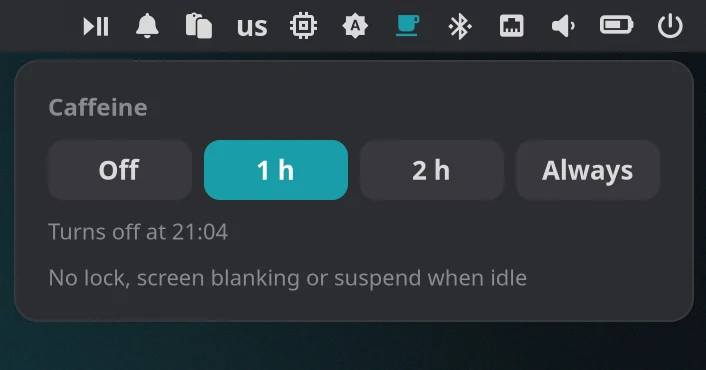
Keeps the screen from locking and the computer from sleeping for 1 hour, 2 hours or always.
Pick Off, 1 h, 2 h or Always in the popup.
The popup tells you when it turns off, or that it stays on until you turn it off.
Right click on the cup turns it on until you turn it off, or turns it off.
While it’s on, being idle doesn’t lock, blank the screen or suspend.
Closing the laptop lid still locks the screen.
The cup is in the accent color when on and grey when off; its tooltip shows the end time.
It’s always off when you log in.
Outside the Swaydesk session (a plain Sway with your own swayidle), caffeine holds a Wayland idle inhibitor (swaydesk-caffeinate) instead of replacing swayidle. With every monitor disabled or unplugged (or, on Sway 1.12, powered off), the idle timeouts can still fire.
Only this component, without the full session. First add the Swaydesk repository, as on the page Install.
Debian 13
sudo apt install swaydesk-caffeine
Ubuntu 26.04 · Mint 27
sudo apt install swaydesk-caffeine
Arch Linux
sudo pacman -Syu swaydesk-caffeine swaydesk-lock
pacman doesn't install optional dependencies, so the line already has the ones apt installs by itself.
Start it on plain Sway
It starts from its Waybar module, below.
In Waybar
In ~/.config/waybar/config.jsonc, add "custom/swaydesk-caffeine" to modules-left, modules-center or modules-right, and paste the module from this file next to your other modules: