~/swaydesk/components/clipboard

← All components

Clipboard

Clipboard

Clipboard

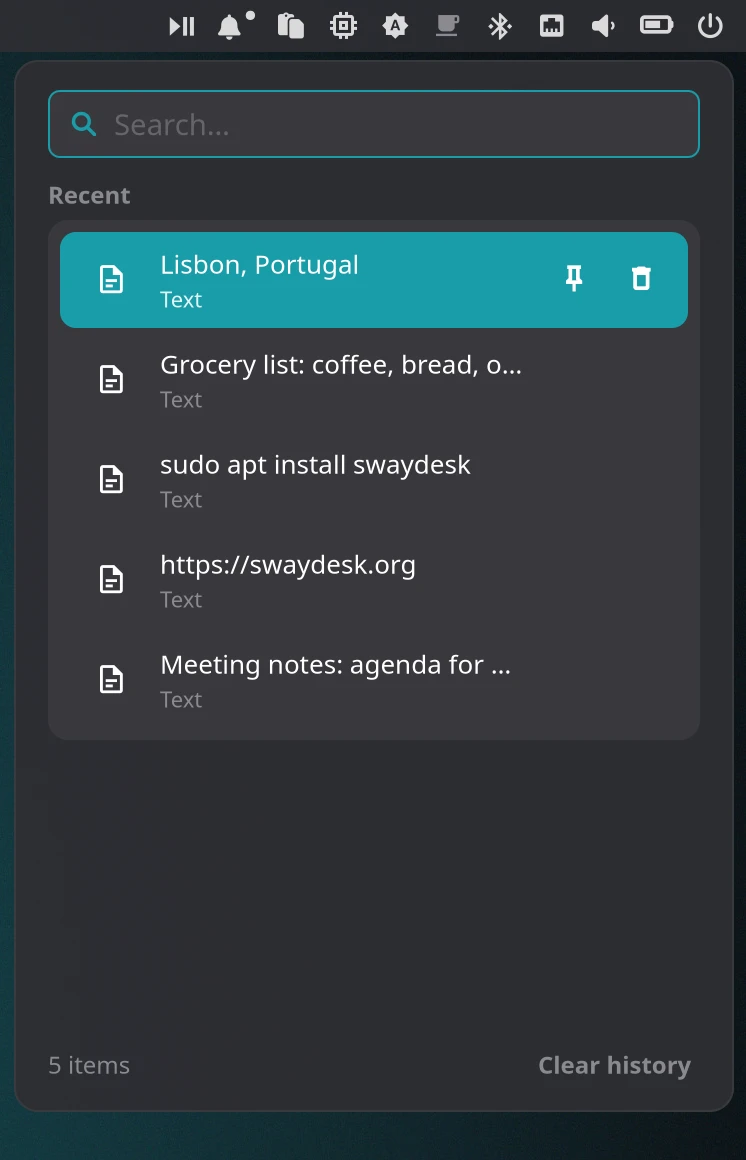
The history of what you copied, with search, thumbnails and pinned items. Turned off, nothing more is saved to the history.

  • Keeps text, images and other content you copy, up to 5 MB per item.
  • Two sections, Pinned and Recent; other content shows its type.
  • Search finds words anywhere in the copied text, several at once, ignoring accents.
  • Just type to search; arrow keys or Tab move, Enter copies, Esc clears the search, then closes.
  • Click an item to copy it again and close the list.
  • Each item has buttons to pin it and to delete it from the history.
  • Clear history asks for a second click; pinned items stay.
  • Also opens with a click on the clipboard icon in the bar.

Rust + GTK 4 · source · More in the guide · turn off: [enabled] clipboard_history = false

Install it alone

Only this component, without the full session. First add the Swaydesk repository, as on the page Install.

Debian 13

sudo apt install swaydesk-clipboard

Ubuntu 26.04 · Mint 27

sudo apt install swaydesk-clipboard

Arch Linux

sudo pacman -Syu swaydesk-clipboard

Start it on plain Sway

In ~/.config/sway/config:

include /usr/share/swaydesk/sway/config.d/50-swaydesk-clipboard.conf

Super+Shift+V shows the history. If your config already runs wl-paste --watch cliphist store, remove that line: the service runs the same watchers.

It runs as a systemd user unit, restarted if it crashes, and does nothing inside the Swaydesk session. Put the include after your config's set $mod. Without a systemd user session, use the exec line in the file's last comment instead.

In Waybar

In ~/.config/waybar/config.jsonc, add "custom/swaydesk-clipboard" to modules-left, modules-center or modules-right, and paste the module from this file next to your other modules:

/usr/share/swaydesk/waybar/swaydesk-clipboard.jsonc

The file's first lines say what each click does. The icons come from the Symbols Nerd Font, which the package brings.

Shortcuts

Super+V

Those of the Swaydesk profile, the default. The other profiles are in Shortcuts.